
Use Gmail deep links to stop losing signups over email verification
Most companies do email-based signup wrong, so learn how to boost signup email verification with Gmail deep links.

Passwords are dying, and the new winning UX trend is going passwordless.
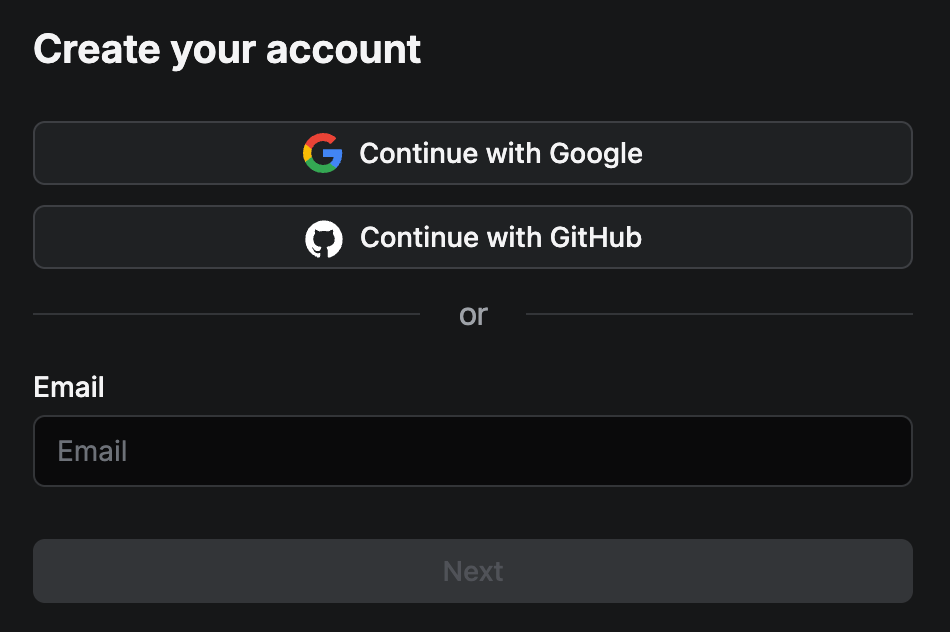
It can be social signup, email verification (with link or code), among other methods. But overall, your email is becoming your password, and everyone loves that:
Users sign up faster, while the company gets more signups. I’ve tried it at B2B and B2C companies, and conversion rates goes up when giving a passwordless option and displaying it first.
Also, there’s an increase in re-logins.
But most companies do email-based signup wrong:
You give your email and hit a page or message telling you to verify your email.
And then, the user doesn’t find your time-urgent email. Or they get distracted by other emails and forget about you.
Dear product marketers, WHY let this happen!?
You could accompany the user journey better by showing a call-to-action that links to the most popular email providers (such as Gmail and Outlook), or even only one based on the email address.
That helps, but do you know what is even better?
A link that brings you directly to the email that matters, regardless of it landing in the promotional folder or the SPAM folder. You can even avoid showing any email that’s not exclusively the one that matters to you.
So I’ll teach you how to do that right now.
This only applies to Gmail, but c’mmon, it has over 2.5 billion activer users in 2025.
Let’s go from basic to advanced with Gmail deep links based on search commands with the following UX cheatsheet, stacking one step at a time:
Link to Gmail:
https://mail.google.com/mail/Go to a specific Gmail account (because some users have multiple emails):
https://mail.google.com/mail/u/{user_email_address}/Head to a specific account, and show messages in any folder (including SPAM and so on):
https://mail.google.com/mail/u/{user_email_address}/#search/in%3AanywhereAll the above, plus filter by recent emails only:
https://mail.google.com/mail/u/{user_email_address}/#search/in%3Aanywhere+newer_than%3A1hDirect user to a specific account, display your emails only, from any folder, and most recent ones.
https://mail.google.com/mail/u/{user_email_address}/#search/from%3A({company_email_address})+in%3AanywhereAdditionally, filter by emails that contain a specific subject line (switching from #search mode to #advanced-search):
https://mail.google.com/mail/u/{user_email_address}/#advanced-search/from={company_email_address}&subject={subject_line}&subset=ast&within=1hWelcome to the operator’s life of cross-channel user journey building (time to ditch native-only and multi-channel myopia!) for the sake of your users’ success and your MRR growth.
Want to see this mechanism in a real experience? Try signing up on Slack or Growth.design.
Let me know in the comments if you need any extra help in creating your tailored Gmail links.
Hope you’ve found this tweak of email verification workflows useful by delivering a Gmail deep link.
P.S: If you want to see another trick to save 1% of our user base, check out my post on how to auto-correct email addresses.
FAQ: What about phone users?
That makes deep linking trickier because you need to create a routing deep link mechanisms (or a “smart deep link”) by detecting the device OS and browser.
You’d need to navigate the changing rules of the operating systems and browser support, and might require SDK integrations. In the end, you’ll realize that customization is possible sometimes only and with extra effort, but it's worth it depending on what’s at stake.